
AI assistants have gotten remarkably capable. You can ask them to summarize a situation, draft a response, compare options, or think through a problem, and they’ll do it well. But there’s a gap between what AI assistants can reason about and what’s actually happening inside your organization.
That gap is the work: the tickets, requests, status updates, and task assignments that live in the systems your team uses every day. And you might be doing some cut-and-paste to try to integrate your systems to give your AI assistant access to those systems.
Today we’re excited to share something that helps close that gap.
AI Is a Great Thinking Partner — But Needs Shared Systems to Be a Great Work Partner
When people work together, shared systems matter. A ticket in RT isn’t just a to-do item, it’s a record of what was requested, who requested it, what’s been done, who’s responsible, and what the current status is. It’s the connective tissue of team coordination.
AI assistants, by contrast, are typically isolated from these systems. You might use Claude or ChatGPT to draft an email or think through a problem, but when you need to act on something, like looking up a ticket, updating a status, or adding a comment, you’re back to switching windows and doing it by hand.
Request Tracker has always been built around the idea that a well-run ticketing system helps teams communicate, track work, and stay accountable. The same principles that made RT useful in 2000 are just as relevant now and AI makes them even more powerful, if the two can be connected.
Introducing the RT MCP Server
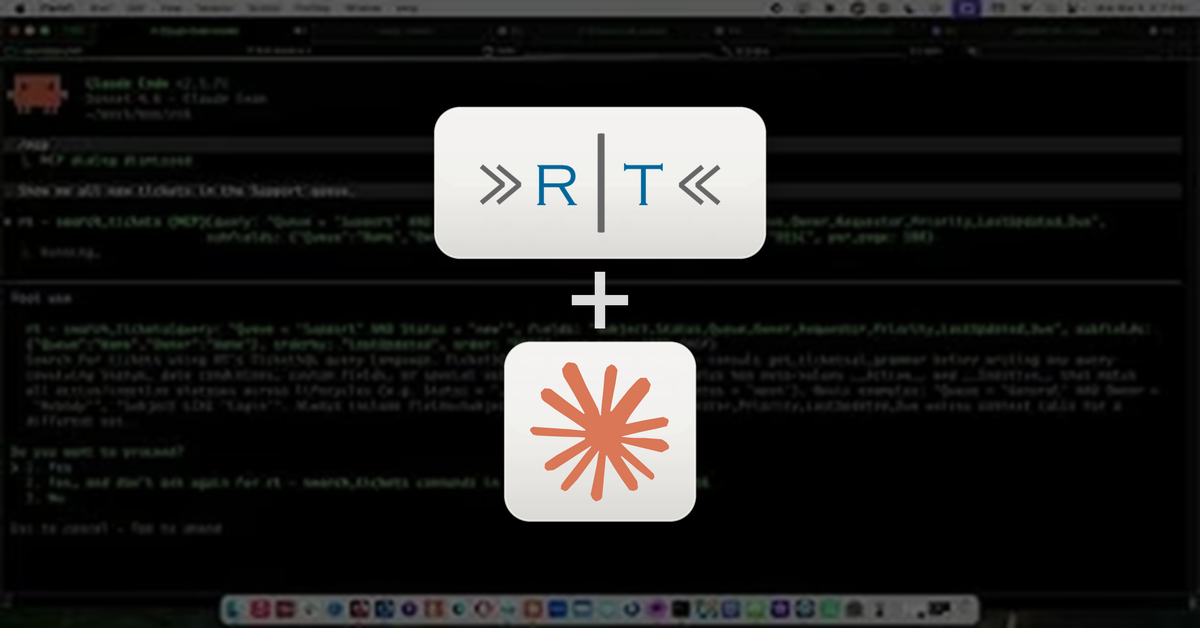
We’ve published a new open-source tool: an MCP server for Request Tracker that connects AI assistants like Claude directly to your RT instance.
As you can see in the video, once the server is running, you can interact with RT using plain conversational language from your AI chat session. You can ask questions, get answers, and take action, without leaving the conversation or switching to a different tool.
Some things you can do:
- Find tickets using natural language like “show me open tickets in the General queue assigned to nobody” without needing to know RT’s query syntax
- Get full context on a ticket, including its history, comments, and current status
- Update tickets to change status, reassign ownership, set due dates, update custom fields
- Add comments or replies directly from the chat
Under the hood, the MCP server acts as a bridge between your AI assistant and RT’s REST API. Your data stays entirely within your own infrastructure, nothing is routed through third-party servers.
The new MCP server is available now on GitHub and via npm.
What Is an MCP, Anyway?
MCP stands for Model Context Protocol, which is a standard that lets AI assistants connect to external tools and data sources. Think of it like a plugin system for AI: instead of the AI being limited to what it already knows, it can reach out to the systems and information your organization actually uses.
In this case, the “plugin” is RT. Once it’s configured, your AI assistant can search, read, and update tickets as a natural part of the conversation — no copy-pasting, no window-switching, no manual data entry.
Who Is This For?
The RT MCP server is a great fit for developers and technical teams who already use tools like Claude Code in their terminal workflow. If you spend time in a command-line environment and also work with RT, you can now handle both from the same session.
One thing we’ve noticed: once users don’t have to break out of their terminal to interact with RT, they actually do it more. Commenting on a ticket, logging time, or filing a new request no longer means context-switching to a browser, it’s just part of the conversation already happening. Small friction matters, and removing it changes habits.
Getting Started in Minutes
Setting up the RT MCP server is straightforward. The only two things you need are your RT instance URL and an auth token, which you can generate in RT under Settings → Auth Tokens. Both are covered in the video above and in the documentation.
For Claude Code, drop a .mcp.json file in your project root pointing at the server:
{ "mcpServers": { "rt": { "command": "npx", "args": ["mcp-server-rt"], "env": { "RT_URL": "https://rt.example.com", "RT_TOKEN": "your-auth-token" } } }}
That’s it. No additional infrastructure, no complicated setup. Claude Code picks up the configuration automatically on the next launch, and you’re ready to work with RT from your terminal session.
Coming Next: AI for Business Users on the Desktop
This first video is aimed at developers, sysadmins, and users comfortable with the terminal. But the same ideas apply to anyone who works with RT. Project managers, support teams, and business users also want a simpler way to stay on top of their queues.
We’re already working on a follow-up showing how business users can work with RT through Claude’s desktop application, with no terminal required. Stay tuned.
Questions or feedback? We’d love to hear how you’re using the RT MCP server. Join the discussion over on our forum.


Leave a Comment